> ## Documentation Index
> Fetch the complete documentation index at: https://help.comdesk.com/llms.txt
> Use this file to discover all available pages before exploring further.

# MobileClient インストール

MobileClientアプリのインストール方法をご説明します。

ー関連記事ー

MobileClientアプリのアンインストール方法は[こちら](14501428133145)　の記事をご参照ください。

**注意！：インストールの前に、Chromeが最新バージョンになっていることをご確認ください。**

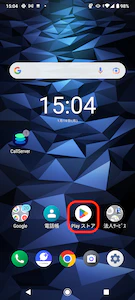
1. Playストアを開きます。\\
   <img src="https://mintcdn.com/comdesk/OsSOHl8C536OnVc5/.gitbook/assets/14501355033241_0.png?fit=max&auto=format&n=OsSOHl8C536OnVc5&q=85&s=6682b47a9af33f1abd7ed0da7c1c3a20" alt="Screenshot_20230116-150409.png" width="135" height="300" data-path=".gitbook/assets/14501355033241_0.png" />
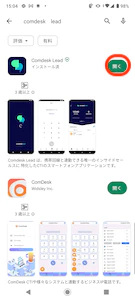
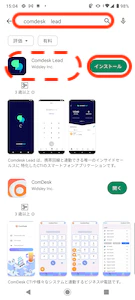
2. 検索枠に「comdesk lead」と検索すると、Comdesk Lead MobileClientアプリが表示されます。\
   赤枠のインストールをクリックします。\\
   <img src="https://mintcdn.com/comdesk/OsSOHl8C536OnVc5/.gitbook/assets/14501355033241_1.png?fit=max&auto=format&n=OsSOHl8C536OnVc5&q=85&s=d972fb7f582e06cfe897f34ce020523c" alt="Screenshot_20230116-150430.png" width="135" height="300" data-path=".gitbook/assets/14501355033241_1.png" />
3. インストール完了後、「開く」をクリックしアプリを開きます。\\
   <img src="https://mintcdn.com/comdesk/OsSOHl8C536OnVc5/.gitbook/assets/14501355033241_2.png?fit=max&auto=format&n=OsSOHl8C536OnVc5&q=85&s=6342ba8e021cd31d00d915797ce8966b" alt="Screenshot_20230116-150441.png" width="135" height="300" data-path=".gitbook/assets/14501355033241_2.png" />
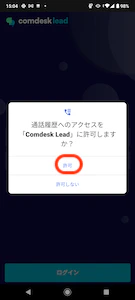
4. 「通話履歴へのアクセスをComdesk Leadに許可しますか？」とポップアップが表示されるので、「許可」をクリックします。\\
   <img src="https://mintcdn.com/comdesk/OsSOHl8C536OnVc5/.gitbook/assets/14501355033241_3.png?fit=max&auto=format&n=OsSOHl8C536OnVc5&q=85&s=7e7bb7eb539ce1ae0a61108b4b60b5ac" alt="Screenshot_20230116-150450.png" width="135" height="300" data-path=".gitbook/assets/14501355033241_3.png" />
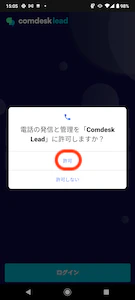
5. 「電話の発信と管理をComdesk Leadに許可しますか？」とポップアップが表示されるので、\
   「許可」をクリックします。\\
   <img src="https://mintcdn.com/comdesk/OsSOHl8C536OnVc5/.gitbook/assets/14501355033241_4.png?fit=max&auto=format&n=OsSOHl8C536OnVc5&q=85&s=dbeca66b5b16f5e05eb625e6ec9831df" alt="Screenshot_20230116-150520.png" width="135" height="300" data-path=".gitbook/assets/14501355033241_4.png" />
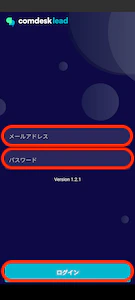
6. ログイン画面が表示されますので、メールアドレスとパスワードを入力して、「ログイン」ボタンをタップします。\*\*\\
   <img src="https://mintcdn.com/comdesk/OsSOHl8C536OnVc5/.gitbook/assets/14501355033241_5.png?fit=max&auto=format&n=OsSOHl8C536OnVc5&q=85&s=189022dbaf9489d912055e569bfe4198" alt="Screenshot_20230120-195237.png" width="135" height="300" data-path=".gitbook/assets/14501355033241_5.png" />

   \*\*
7. 下図画面が表示されると、ログイン完了です。\*\*\
   <img src="https://mintcdn.com/comdesk/OsSOHl8C536OnVc5/.gitbook/assets/14501355033241_6.png?fit=max&auto=format&n=OsSOHl8C536OnVc5&q=85&s=e4eee59034dc3d5daf675406cfb0d90c" alt="Screenshot_20230120-195354.png" width="135" height="300" data-path=".gitbook/assets/14501355033241_6.png" />\*\*

その他ご不明点などございましたら、[**サポートチームまでお問い合わせ**](#contact)をお願いいたします。