> ## Documentation Index
> Fetch the complete documentation index at: https://help.comdesk.com/llms.txt
> Use this file to discover all available pages before exploring further.

# MobileClient アンインストール

Comdesk Lead MobileClientアプリのアンインストール方法をご説明します。

※本記事は、端末機種：DIGNO BX 　の環境条件の画面でご案内しております。\
機種やバージョンによって表記等、異なる場合がございます。ご了承ください。

ー関連記事ー

MobileClientアプリのインストール方法の記事は[こちら](14501355033241)　をご参照ください。

[インストールファイルの削除](#01FPSE4X86QH659HPRKRVYASFX)\
[アプリのアンインストール](#01FPSE4X861GQN4ARCAC4K9VAQ)

## &#x20;**インストールファイルの削除**

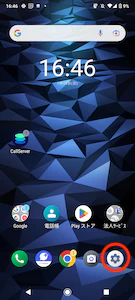
1. 端末の設定を開きます。\\
   <img src="https://mintcdn.com/comdesk/OsSOHl8C536OnVc5/.gitbook/assets/14501428133145_0.png?fit=max&auto=format&n=OsSOHl8C536OnVc5&q=85&s=a7a78906ff4a9df7b2ee6c19f94f9354" alt="Screenshot_20230115-164639_____.png" width="135" height="300" data-path=".gitbook/assets/14501428133145_0.png" />
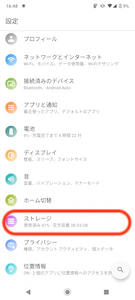
2. 設定内の「ストレージ」を開きます。\\
   <img src="https://mintcdn.com/comdesk/OsSOHl8C536OnVc5/.gitbook/assets/14501428133145_1.png?fit=max&auto=format&n=OsSOHl8C536OnVc5&q=85&s=e7051ac86d4ea9a9c53378044aa98514" alt="Screenshot_20230115-164812.png" width="135" height="300" data-path=".gitbook/assets/14501428133145_1.png" />
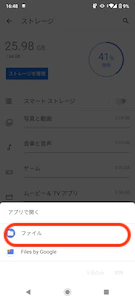
3. ストレージ内の「ファイル」を選択します。\
   ※ファイルを選択した際に「アプリで開く」が表示された場合、デフォルトの「ファイル」（画像右）を選択してください。\
   <img src="https://mintcdn.com/comdesk/OsSOHl8C536OnVc5/.gitbook/assets/14501428133145_2.png?fit=max&auto=format&n=OsSOHl8C536OnVc5&q=85&s=5e9ce4fa01d27704c67eae08d8f06145" alt="Screenshot_20230115-164829.png" width="135" height="300" data-path=".gitbook/assets/14501428133145_2.png" />　　<img src="https://mintcdn.com/comdesk/OsSOHl8C536OnVc5/.gitbook/assets/14501428133145_3.png?fit=max&auto=format&n=OsSOHl8C536OnVc5&q=85&s=956fb721588e63d1307c5f7ab400f162" alt="Screenshot_20230115-164841.png" width="135" height="300" data-path=".gitbook/assets/14501428133145_3.png" />
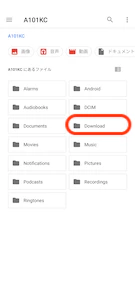
4. ファイルアプリに遷移し、「Download」フォルダをクリックします。\\
   <img src="https://mintcdn.com/comdesk/OsSOHl8C536OnVc5/.gitbook/assets/14501428133145_4.png?fit=max&auto=format&n=OsSOHl8C536OnVc5&q=85&s=f58bdee2ec5703e4ca0d41f941c61382" alt="Screenshot_20230121-155235.png" width="135" height="300" data-path=".gitbook/assets/14501428133145_4.png" />
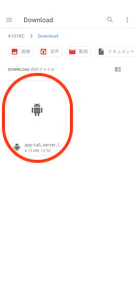
5. 「Download」フォルダの中に、いままでダウンロードしているファイルが表示されます。\
   ファイル名：app-call\_server\_lead-1.2.0.apk　を選択します。\\
   <img src="https://mintcdn.com/comdesk/OsSOHl8C536OnVc5/.gitbook/assets/14501428133145_5.png?fit=max&auto=format&n=OsSOHl8C536OnVc5&q=85&s=7073ae8d1f6056a05b33e47abdad20fb" alt="Screenshot_20230121-155251.png" width="135" height="300" data-path=".gitbook/assets/14501428133145_5.png" />
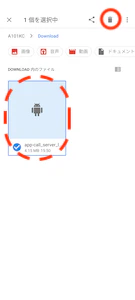
6. ファイルを選択したら、右上のゴミ箱アイコンをクリックします。\\
   <img src="https://mintcdn.com/comdesk/OsSOHl8C536OnVc5/.gitbook/assets/14501428133145_6.png?fit=max&auto=format&n=OsSOHl8C536OnVc5&q=85&s=5198d2e83fea3b87026c98e9e1dc6a3d" alt="Screenshot_20230121-155327.png" width="135" height="300" data-path=".gitbook/assets/14501428133145_6.png" />
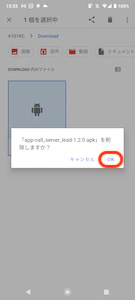
7. ファイル名：app-call\_server\_lead-1.2.0.apk　を削除しますか＞とポッアップが表示されるので、\
   「OK」をクリックし、削除します。\\
   <img src="https://mintcdn.com/comdesk/OsSOHl8C536OnVc5/.gitbook/assets/14501428133145_7.png?fit=max&auto=format&n=OsSOHl8C536OnVc5&q=85&s=e059d1728f583b3463a7f6f74a1439ec" alt="Screenshot_20230121-155523.png" width="135" height="300" data-path=".gitbook/assets/14501428133145_7.png" />
8. ダウンロードフォルダに削除対象のファイル（app-call\_server\_lead-1.2.0.apk）がなければ削除完了です。

## **アプリのアンインストール**

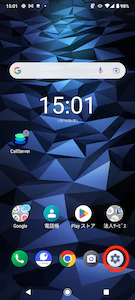
1. &#x20;設定を開きます。\\
   <img src="https://mintcdn.com/comdesk/OsSOHl8C536OnVc5/.gitbook/assets/14501428133145_8.png?fit=max&auto=format&n=OsSOHl8C536OnVc5&q=85&s=d01080e5dc6791945736c6b288474f2d" alt="Screenshot_20230116-150142.png" width="135" height="300" data-path=".gitbook/assets/14501428133145_8.png" />
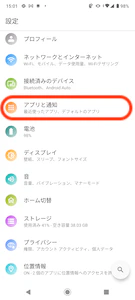
2. 「アプリと通知」を開きます。\\
   <img src="https://mintcdn.com/comdesk/OsSOHl8C536OnVc5/.gitbook/assets/14501428133145_9.png?fit=max&auto=format&n=OsSOHl8C536OnVc5&q=85&s=b298487d53831dfb2ae296569b5dc7f2" alt="Screenshot_20230116-150156.png" width="135" height="300" data-path=".gitbook/assets/14501428133145_9.png" />
3. 最近開いたアプリが表示され、その中にComdesk Leadアプリがない場合\
   下の赤枠内、○○個のアプリをすべて表示をクリックします。<img src="https://mintcdn.com/comdesk/OsSOHl8C536OnVc5/.gitbook/assets/14501428133145_10.png?fit=max&auto=format&n=OsSOHl8C536OnVc5&q=85&s=5f07ff0bc4bdf2d1b44919b28a2b4b3b" alt="Screenshot_20230121-160547.png" width="135" height="300" data-path=".gitbook/assets/14501428133145_10.png" />
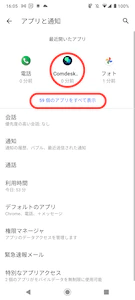
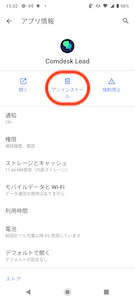
4. 端末に入っているすべてのアプリが表示されますので、「Comdesk Lead」アプリをクリックし\
   「アンインストール」をクリックします。\\
   <img src="https://mintcdn.com/comdesk/OsSOHl8C536OnVc5/.gitbook/assets/14501428133145_11.png?fit=max&auto=format&n=OsSOHl8C536OnVc5&q=85&s=950e8d39a58ac340d38bf590502ae770" alt="Screenshot_20230116-150218.png" width="135" height="300" data-path=".gitbook/assets/14501428133145_11.png" />
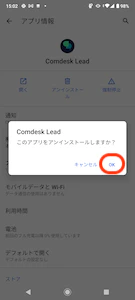
5. 「このアプリをアンインストールしますか？」とポップアップが表示されます。\
   「OK」をクリックするとアンインストールが始まります。\\
   <img src="https://mintcdn.com/comdesk/OsSOHl8C536OnVc5/.gitbook/assets/14501428133145_12.png?fit=max&auto=format&n=OsSOHl8C536OnVc5&q=85&s=afa3f37357ec73216587b13e1f6449e7" alt="Screenshot_20230116-150225.png" width="135" height="300" data-path=".gitbook/assets/14501428133145_12.png" />
6. 「Comdesk Lead」アプリが削除されていれば、アンインストール完了です。

その他ご不明点などございましたら、[**サポートチームまでお問い合わせ**](#contact)をお願いいたします。