> ## Documentation Index
> Fetch the complete documentation index at: https://help.comdesk.com/llms.txt
> Use this file to discover all available pages before exploring further.

# CallServerのアンインストール

## CallServerのアンインストール

CallServerのアンインストール方法についてご説明いたします。\
ご利用の機種（DIGNO BX2もしくはAQUOS wish）のご説明をご覧ください。

目次\
1\. [DIGNO BX2をご利用の場合](12814709914777)\
2\. [AQUOS Wishをご利用の場合](12814709914777)

## **DIGNO BX2をご利用の場合**

### 1. ダウンロードファイルの削除

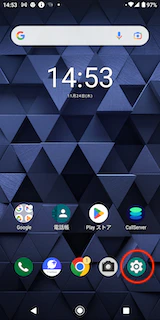
1. ホーム画面から設定アプリを開きます。\\
   <img src="https://mintcdn.com/comdesk/VgNeekM5ZhAc0Hxp/.gitbook/assets/12814709914777_0.png?fit=max&auto=format&n=VgNeekM5ZhAc0Hxp&q=85&s=931c627f565f2e02e880c9454350c60f" alt="1Screenshot_20221124-145303__1_.png" width="160" height="320" data-path=".gitbook/assets/12814709914777_0.png" />
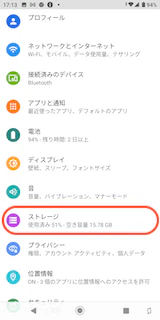
2. 設定内の「ストレージ」をタップします。\\
   <img src="https://mintcdn.com/comdesk/VgNeekM5ZhAc0Hxp/.gitbook/assets/12814709914777_1.png?fit=max&auto=format&n=VgNeekM5ZhAc0Hxp&q=85&s=7a6b7fbf19c6c11cbae17bdba83a7cc7" alt="2Screenshot_20221124-171317.png" width="160" height="320" data-path=".gitbook/assets/12814709914777_1.png" />
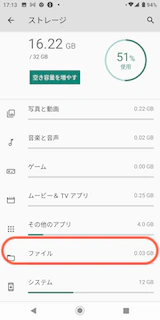
3. ストレージを開いたら、「ファイル」をタップします。\
   ※「ファイル」をタップ後、どのアプリケーションで開くか問われた場合には\
   　デフォルトの「ファイル」アプリを選択してください。\\
   <img src="https://mintcdn.com/comdesk/qhh9B034wN4BUu9D/.gitbook/assets/12814709914777_2.png?fit=max&auto=format&n=qhh9B034wN4BUu9D&q=85&s=8f37656fcdd36be184330178ce180d04" alt="3Screenshot_20221124-171334.png" width="160" height="320" data-path=".gitbook/assets/12814709914777_2.png" />
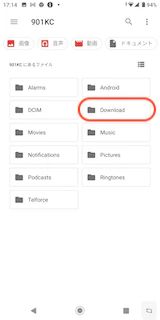
4. ファイルアプリに移動したら「Download」フォルダをタップします。\\
   <img src="https://mintcdn.com/comdesk/qhh9B034wN4BUu9D/.gitbook/assets/12814709914777_3.png?fit=max&auto=format&n=qhh9B034wN4BUu9D&q=85&s=f68b4441eb58ee64de7220b48efb5ca0" alt="4Screenshot_20221124-171414.png" width="160" height="320" data-path=".gitbook/assets/12814709914777_3.png" />
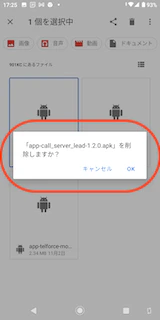
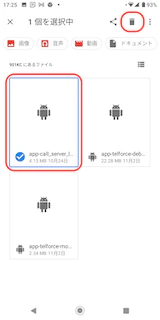
5. 「Download」フォルダの中には今までダウンロードしたファイルが表示されます。\
   他のファイルをダウンロードしていない場合は\*\*全て削除、\
   \*\*複数ファイルが表示される場合は\
   ファイル名：**app-call\_server\_lead-1.2.0.apk**　を選択し削除してください。\
   <img src="https://mintcdn.com/comdesk/qhh9B034wN4BUu9D/.gitbook/assets/12814709914777_4.png?fit=max&auto=format&n=qhh9B034wN4BUu9D&q=85&s=5cd20e517581667f58a44457ac4d3bd8" alt="5Screenshot_20221124-172524.png" width="160" height="320" data-path=".gitbook/assets/12814709914777_4.png" /><img src="https://mintcdn.com/comdesk/qhh9B034wN4BUu9D/.gitbook/assets/12814709914777_5.png?fit=max&auto=format&n=qhh9B034wN4BUu9D&q=85&s=eeabaf4a3dac43f7923fd7fe3c3f6437" alt="_Screenshot_20221124-172543.png" width="160" height="320" data-path=".gitbook/assets/12814709914777_5.png" />\
   &#x20;

### 2. アプリのアンインストール

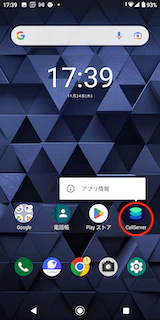
1. ホーム画面に戻り、アンインストール対象のアプリを長押しし、「アプリ情報」をタップします。\\
   <img src="https://mintcdn.com/comdesk/qhh9B034wN4BUu9D/.gitbook/assets/12814709914777_6.png?fit=max&auto=format&n=qhh9B034wN4BUu9D&q=85&s=ef77a343286570b75bb7fb55d2e613fd" alt="9Screenshot_20221124-173951.png" width="160" height="320" data-path=".gitbook/assets/12814709914777_6.png" />
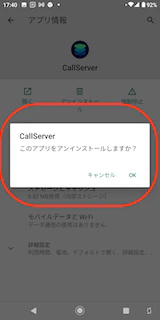
2. アプリ情報内の「アンインストール」をタップし、「OK」をタップします。\
   <img src="https://mintcdn.com/comdesk/qhh9B034wN4BUu9D/.gitbook/assets/12814709914777_7.png?fit=max&auto=format&n=qhh9B034wN4BUu9D&q=85&s=54e283f974f2d43b4c1420fb063c9253" alt="99Screenshot_20221124-174318.png" width="160" height="320" data-path=".gitbook/assets/12814709914777_7.png" />　<img src="https://mintcdn.com/comdesk/qhh9B034wN4BUu9D/.gitbook/assets/12814709914777_8.png?fit=max&auto=format&n=qhh9B034wN4BUu9D&q=85&s=3a13b3c990adb90e1513a9b2ec641b80" alt="10Screenshot_20221124-174044.png" width="160" height="320" data-path=".gitbook/assets/12814709914777_8.png" />
3. アプリ一覧から、アンインストール対象のアプリが消えていれば\
   アプリのアンインストールが完了です。

## **AQUOS Wishをご利用の場合**

### **1. ダウンロードファイルの削除**

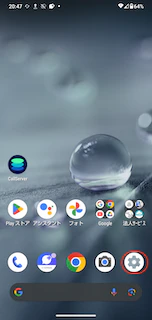
1. ホーム画面から設定アプリを開きます。
   <img src="https://mintcdn.com/comdesk/qhh9B034wN4BUu9D/.gitbook/assets/12814709914777_9.png?fit=max&auto=format&n=qhh9B034wN4BUu9D&q=85&s=1a24327551d0b5a7e0c48ac5939a472b" alt="Screenshot_20231024-204745.png" width="152" height="320" data-path=".gitbook/assets/12814709914777_9.png" />
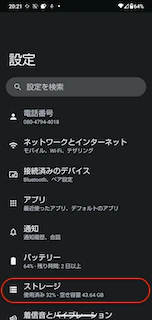
2. 設定内の「ストレージ」をタップします。

   <img src="https://mintcdn.com/comdesk/VgNeekM5ZhAc0Hxp/.gitbook/assets/12814709914777_10.png?fit=max&auto=format&n=VgNeekM5ZhAc0Hxp&q=85&s=701f16360ee6f87bce1528bc37519d7f" alt="Screenshot_20231024-202156.png" width="152" height="320" data-path=".gitbook/assets/12814709914777_10.png" />
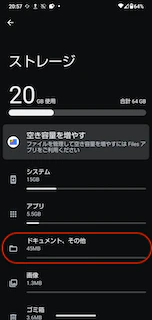
3. ストレージを開いたら、「ドキュメント、その他」をタップします。\
   ※「ドキュメント、その他」をタップ後、どのアプリケーションで開くか問われた場合は\
   　デフォルトの「ファイル」アプリを選択してください。
   <img src="https://mintcdn.com/comdesk/VgNeekM5ZhAc0Hxp/.gitbook/assets/12814709914777_11.png?fit=max&auto=format&n=VgNeekM5ZhAc0Hxp&q=85&s=8393cfd05ccab49f2a8091912c307383" alt="Screenshot_20231024-205724.png" width="152" height="320" data-path=".gitbook/assets/12814709914777_11.png" />
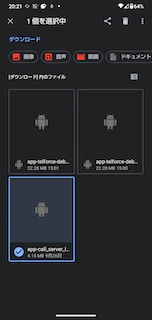
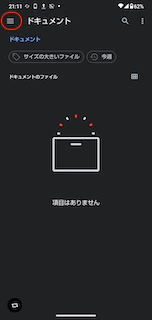
4. 「ドキュメント」が表示されたら左上の三本線をクリックし、「ダウンロード」をタップします。\
   「ダウンロード」画面に遷移後、他のファイルをダウンロードしていない場合は\*\*全て削除\
   \*\*複数ファイルが表示される場合は\
   ファイル名：**app-call\_server\_lead-1.2.0.apk**　を選択し削除してください。
   <img src="https://mintcdn.com/comdesk/VgNeekM5ZhAc0Hxp/.gitbook/assets/12814709914777_12.png?fit=max&auto=format&n=VgNeekM5ZhAc0Hxp&q=85&s=0f0cede7304480cccfd084e82308f408" alt="Screenshot_20231024-211113.png" width="152" height="320" data-path=".gitbook/assets/12814709914777_12.png" />

   <img src="https://mintcdn.com/comdesk/qhh9B034wN4BUu9D/.gitbook/assets/12814709914777_13.png?fit=max&auto=format&n=qhh9B034wN4BUu9D&q=85&s=94bb20695c6eddccd3b078ba52f6f12f" alt="Screenshot_20231024-202130.png" width="152" height="320" data-path=".gitbook/assets/12814709914777_13.png" />

### **2. アプリのアンインストール**

1. ホーム画面に戻り、アンインストール対象のアプリを長押しし、「アプリ情報」をタップします。

   \*\*<img src="https://mintcdn.com/comdesk/qhh9B034wN4BUu9D/.gitbook/assets/12814709914777_14.png?fit=max&auto=format&n=qhh9B034wN4BUu9D&q=85&s=cbb947e4746f47d70dfc4aa395c7135c" alt="Screenshot_20231025-134056.png" width="152" height="320" data-path=".gitbook/assets/12814709914777_14.png" />

   \*\*
2. アプリ情報内の「アンインストール」をタップし、「OK」をタップします。

   　<img src="https://mintcdn.com/comdesk/qhh9B034wN4BUu9D/.gitbook/assets/12814709914777_15.png?fit=max&auto=format&n=qhh9B034wN4BUu9D&q=85&s=ab406403f6229915c9bf4fc0de7b8f9a" alt="Screenshot_20231024-202208.png" width="152" height="320" data-path=".gitbook/assets/12814709914777_15.png" />　<img src="https://mintcdn.com/comdesk/qhh9B034wN4BUu9D/.gitbook/assets/12814709914777_16.png?fit=max&auto=format&n=qhh9B034wN4BUu9D&q=85&s=2cbc2d37fa51b57e298082a9d432ac09" alt="Screenshot_20231025-134748.png" width="152" height="320" data-path=".gitbook/assets/12814709914777_16.png" />
3. アプリ一覧から、アンインストール対象のアプリが消えていれば\
   アプリのアンインストールが完了です。

その他ご不明点などございましたら、[**サポートチームまでお問い合わせ**](#contact)をお願い致します。